Apply a report theme in Power BI Desktop
Power BIOn the Design tab, choose Import theme and pick the JSON file. Visuals you formatted by hand keep their own colours until you reset them.
What a theme file is
A report theme is a JSON file. It sets the colours and text styles for the whole report. It holds no data.
Power BI Desktop saves the theme with the report. In a PBIP project it is a file in the report folder's StaticResources/RegisteredResources, and report.json lists it.
Source: Use report themes in Power BI Desktop, Power BI Desktop project report folder.
Apply a theme file
Importing a theme removes the report's earlier theme changes. To try one without keeping it, close the report without saving afterwards.
- Open your report in Power BI Desktop. On the Design tab, choose Import theme.

- Pick the
.jsonfile. Desktop shows a dialog when the import works.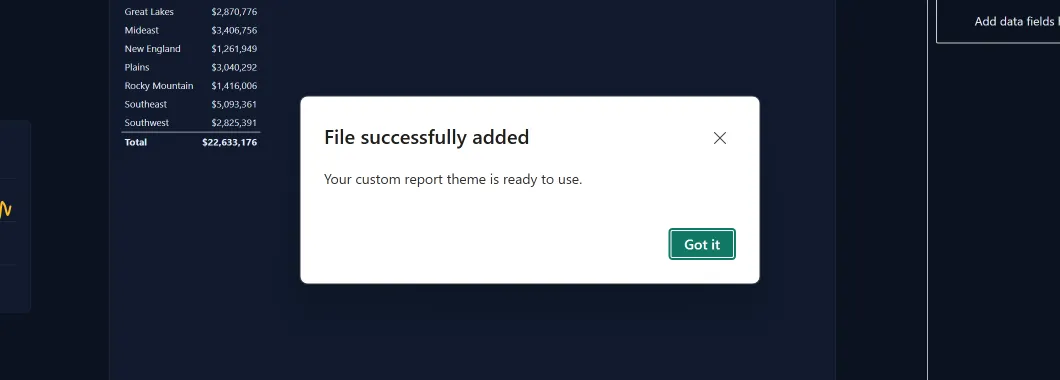
- Check a page. Charts, cards and tables take the theme's colours.
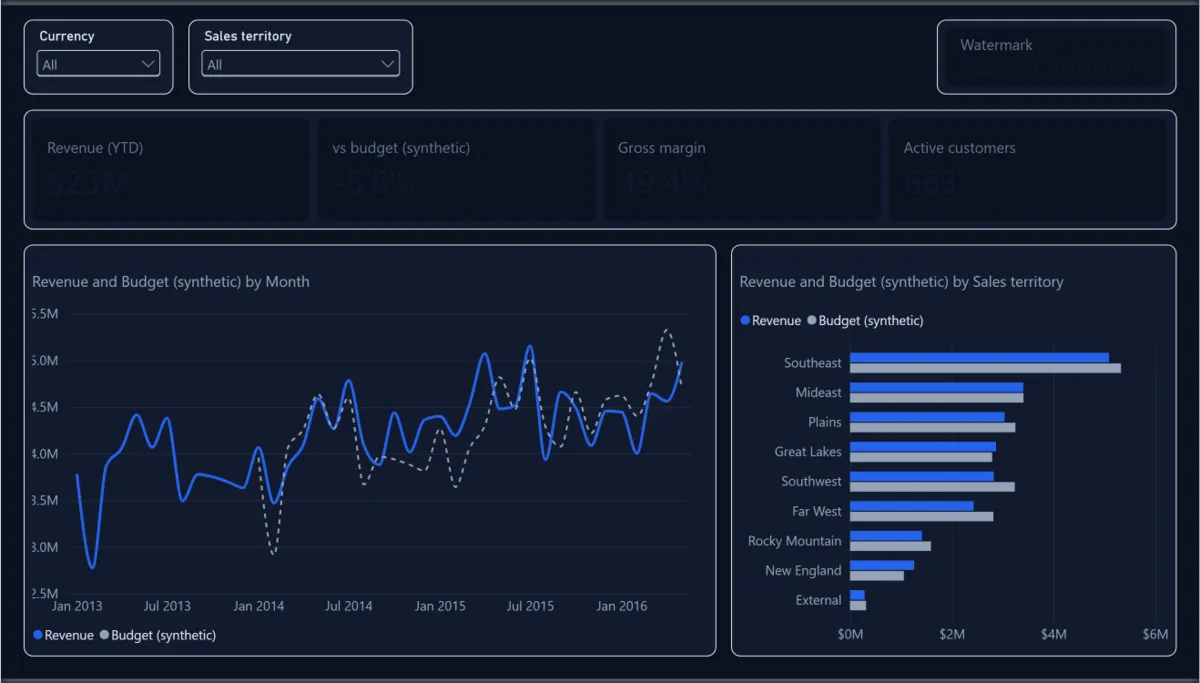
Some visuals did not change
A theme does not change a visual you formatted by hand. That visual keeps its own colours until you reset it. Resetting also removes its conditional formatting rules.
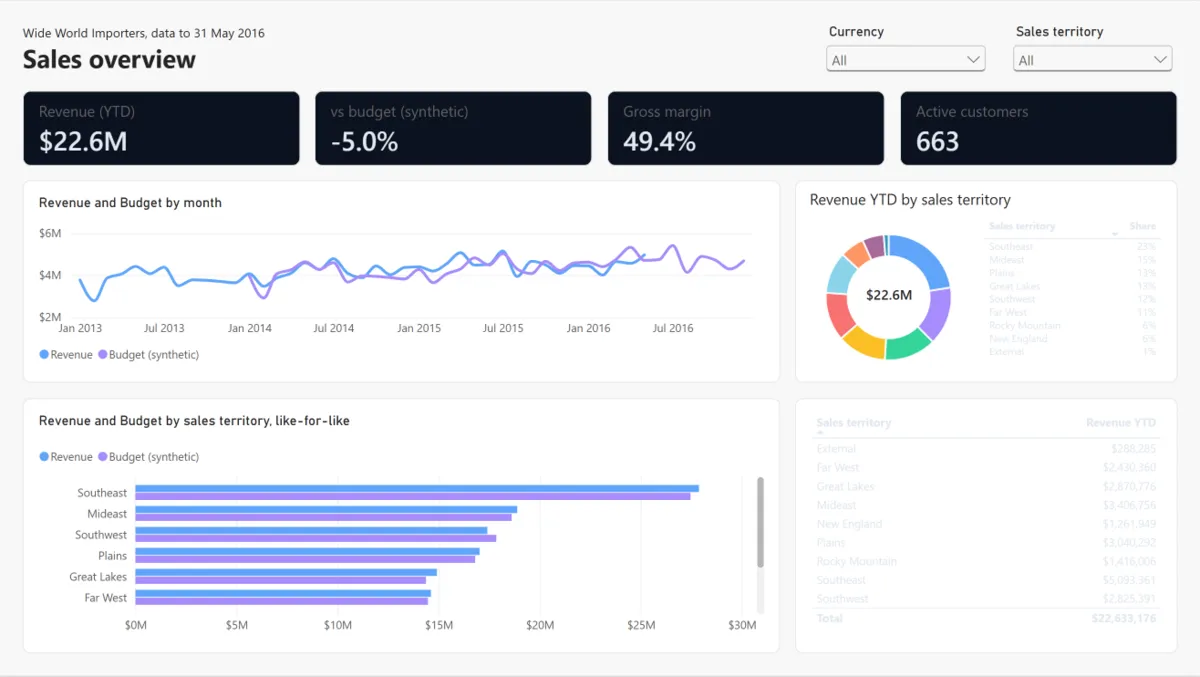
- Here a dark theme coloured the boxes, but the card values kept the dark text set on them by hand, so they almost vanish.
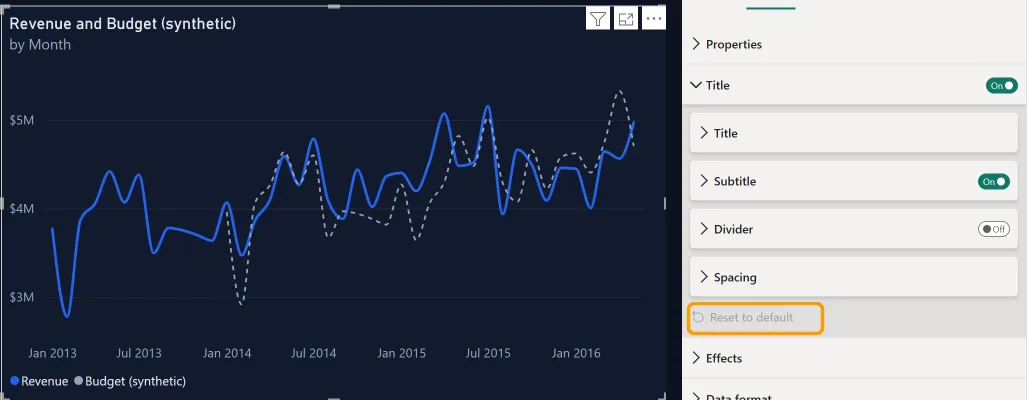
- Select the visual. In the Format pane, open the section that holds the colour, such as Title on the General tab. At the foot of that section, choose Reset to default. It puts back every setting in that section, not only the colour, and it is greyed where nothing was set by hand.
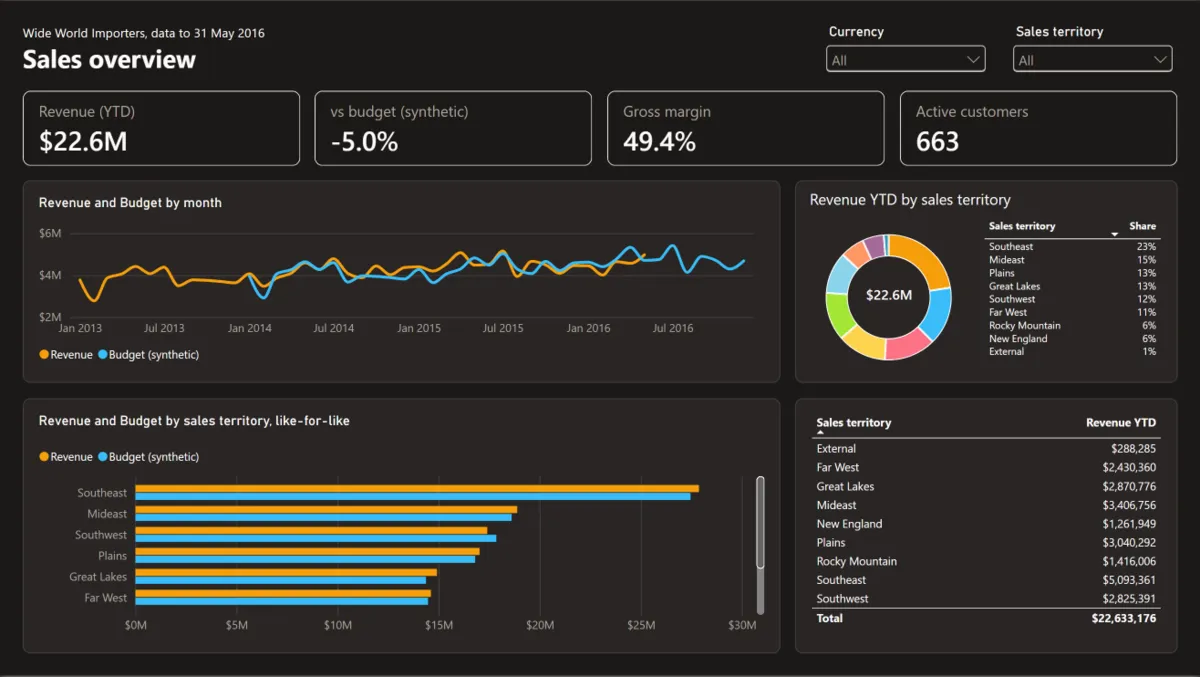
A dark theme left white boxes
A theme file needs only a name. Anything it leaves out comes from Desktop's base theme, which is light. A new release can update the base theme, but a report keeps its original base theme until you update it.
So a dark file that sets only the main colours can leave chart and table boxes white, with light text on them.
- This file set only the main colours. The chart and table boxes stayed white, and the table text can't be read.
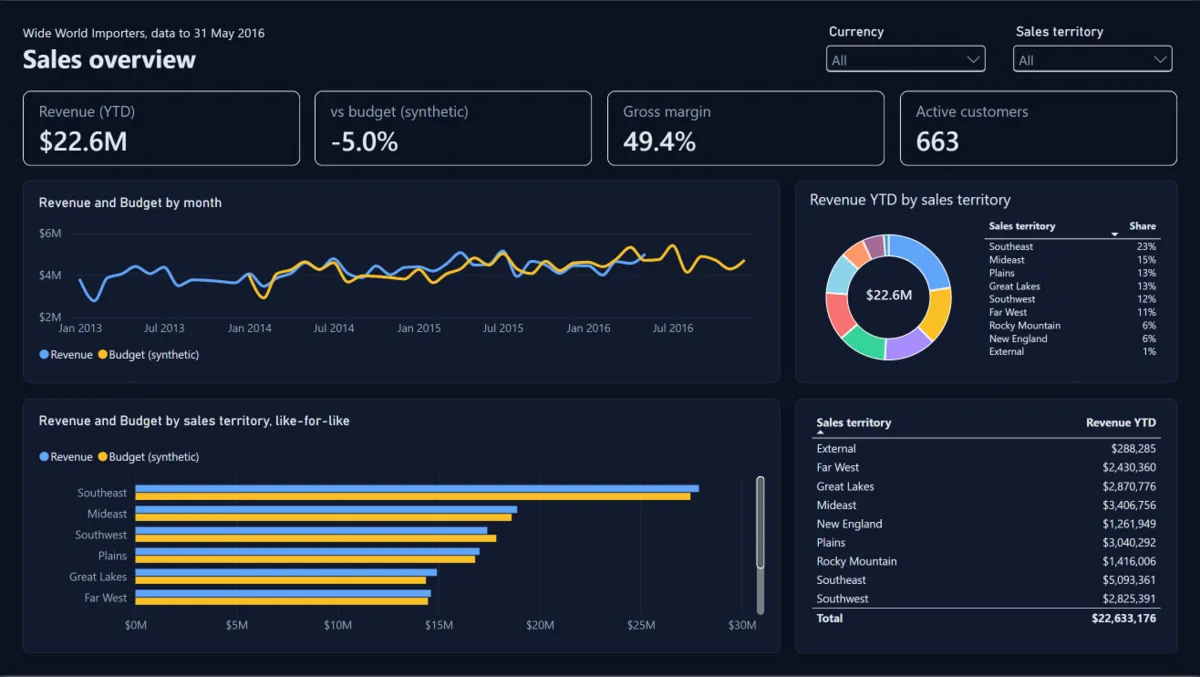
- A file that also sets visual styles and text classes colours the page, the boxes and the text.
Source: Create custom report themes in Power BI Desktop, Use report themes in Power BI Desktop.
The import failed
Desktop shows a dialog with the error in the file. Fix the file and import it again.
Paste the file into the JSON validator to find a syntax error.
Source: Use report themes in Power BI Desktop, Create custom report themes in Power BI Desktop.
Change it after importing
On the Design tab, Customize theme changes the colours and text of the theme in use.
Go back to a built-in theme
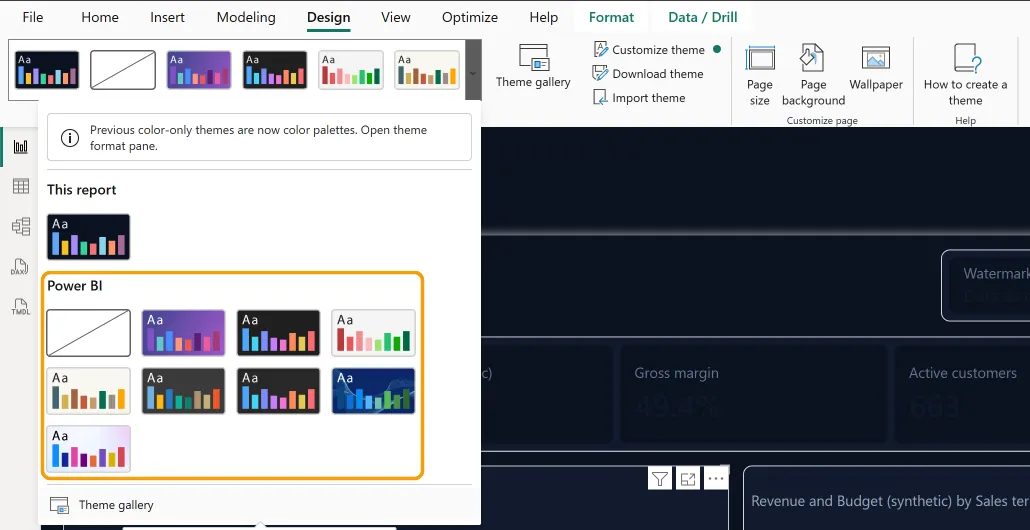
- On the Design tab, open the list of themes and pick one under Power BI. A built-in theme replaces the custom one.
Themes in the Power BI service
The Design tab is in Power BI Desktop only. In the service, choose View, then Theme.
Screenshots: Power BI Desktop 2.159.1231.0, 15 Nov 2026. If a step looks different in your Desktop, tell us with Feedback at the bottom of the page.
Check a project in your browser
The Power BI Report Doctor checks a PBIP project's report and model files in your browser. It does not read theme files. Nothing is uploaded.
The showcase shows five themes on one report, each with its file. See them on the report canvas.
Other guides
- What is a PBIP project, and what is TMDL?A Power BI project (PBIP) saves a report and its semantic model as plain text files in folders, instead of one
.pbixfile. - Power BI Desktop can't open a PBIPWhen Power BI Desktop refuses a project, the message usually names a file.
- PBIR vs PBIR-LegacyPBIR saves a report as a folder with a file for each page, visual and bookmark.
- PBIP and Git: what to commit and what to ignoreA PBIP project is plain text, so Git can track it.
- Rename a measure or column without breaking visualsReports connected live to a semantic model are not told about a rename.
- Turn a .pbix into a PBIP projectPower BI Desktop converts a .pbix to a PBIP, and back, with File > Save as.
- Find where a measure is usedPower BI Desktop does not list the visuals that use a measure, and lineage in the service stops at whole reports.
Sources
- Microsoft Learn: Use report themes in Power BI Desktop. The introduction, "Apply a custom report theme JSON file", "Apply a built-in report theme", "Understand how the report uses themes" and "Considerations and limitations". Page dated 2026-08-31. Read 2026-11-15.
- Microsoft Learn: Power BI Desktop project report folder. The folder tree, RegisteredResources ("resource files specific to the report and loaded by the user, like custom themes"), and "every resource file must have a corresponding entry in the report.json file". Page dated 2026-09-23. Read 2026-11-15.
- Microsoft Learn: Create custom report themes in Power BI Desktop. "Create a custom theme file", "Set structural colors", "Set formatted text defaults" and "Set properties for visual types". Page dated 2026-08-31. Read 2026-11-15.